Over the decades, individuals have referred to the process of manipulating a photo as photoshopping. It is the default choice when it comes to editing pictures, and it is also costly and difficult to use. You are either a new photographer, a digital artist, or a small business owner posting to social media and you may be asking yourself: Are there good alternatives to Adobe? The answer is a big yes.
The market is dominated by Adobe Photoshop. It owns approximately 34 to 42 percent of all graphic software in 2024-2025. More than 90 percent of creative professionals work with Adobe. The Creative Cloud Photography plan will cost more than 239 in a single year; something that hobbyists cannot afford. The number of searches with the keyword Photoshop alternatives has increased by 15 to 20 percent annually due to the fact that people are fed up paying subscriptions. This guide presents you with the best free and paid tools which will not empty your pockets or make you surrender to being creative.
Why in search of Photoshop alternatives?
Why not stick with Photoshop when it is so good? It normally boils down to three Cs namely Cost, Complexity, and Computer.
- Price – Adobe switched to all-Subscription long ago. You do not even own the software, you simply rent it. When you cease to pay, you lose everything.
- Complexity- Photoshop is used by all, including 3D animators and forensic scientists. It implies that you have a lot of tools that you might never use and that can be frightening to beginners.
- Computer Specs- Photoshop requires a good processor with a lot of RAM. Photoshop can cripple your laptop or even your budget PC, especially when it is older.
Key Features of Photoshop Alternatives
These are the main characteristics to consider in an alternative to Photoshop.
Any free tool downloaded should include all these features that are necessities before taking up:
- Layer support- You should be able to overlay images, text and effects without making any long-lasting alterations to the original photo.
- Selection tools – Convenient methods of removing an individual in the background such as magic wand or lasso tools.
- Non-destructive editing- edit a photo without destroying the original file.
- File compatibility –Open common formats (JPG, PNG) and ideally PSD files of Photoshop.
- RAW support – The software is supposed to read high-quality RAW photos of your camera in case you are a photographer.
15 Best Photoshop alternatives
1. Affinity Photo
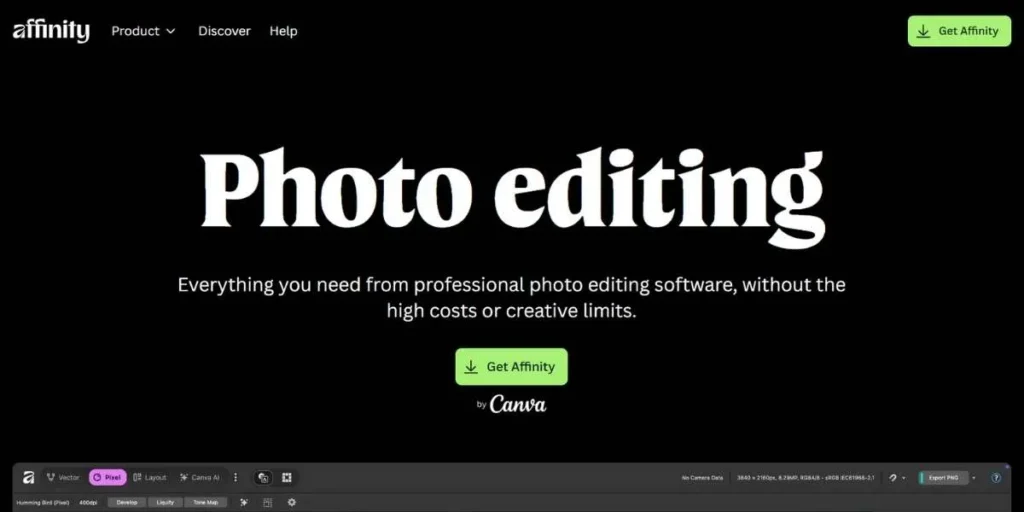
Affinity Photo is considered to be the most popular Photoshop killer on the market. It is a modern, fast developed one created by Serif. The layout and shortcuts are very comparable, so the transition is easy to make in case you are accustomed to Photoshop. It is capable of processing massive files and it provides a complete professional toolkit at a fraction of the cost.
- Key Features: Majority of the features include unlimited layers, full HDR merge, 360-image editing, numerous brushes, and compatibility with PSD files.
- Pros: One-time purchase (no subscription), rapid performance, professional-level tools.
- Cons: No Android version, shortcuts are slightly varied as compared to Adobe.
- Pricing: About $69.99.
- Best for: Professionals and hobbyists who abhor subscriptions.
2. Gimp (GNU Image Manipulation Program)
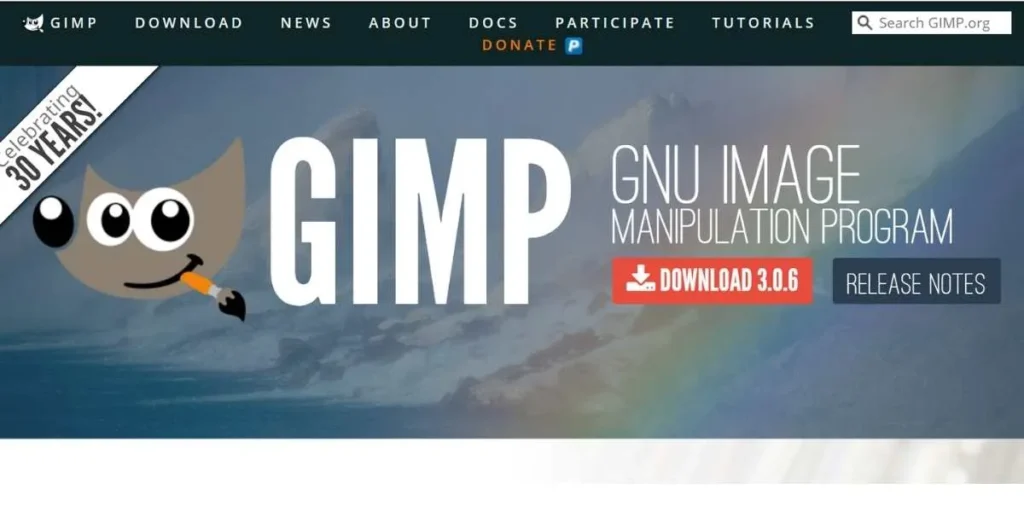
As one of the most popular Photoshop alternatives, the free, open-source image editors are GIMP. It is over 25 years old and is supported by a community of developers. It is capable of virtually anything that Photoshop can do, including tricky edits and scripting. Since it is open source, you are able to modify the interface and install numerous plugins. It may seem simple but it is quite strong.
- Key Features: Interface is highly customizable, layer management, large library of plugins, extensive file format.
- Pros: It is free, and it is based on Linux, and it is not as heavy as Photoshop.
- Cons: Interface is confusing; High learning curve; no native CMYK print.
- Price: Free.
- Best to use: in-case of- tech-savvy users and Linux enthusiasts.
3. Pixelmator Pro
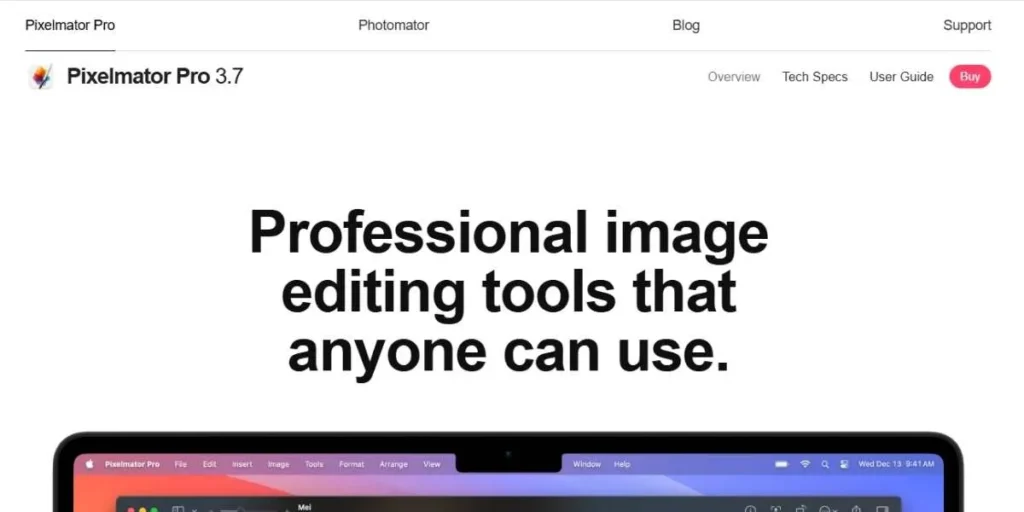
Among the noteworthy Photoshop alternatives, Pixelmator Pro is available to Mac users only. It appears and feels like a native Apple application and edits on the Mac processors (particularly the M1/M2 processors) can be made with lightning-speed. It performs automatic tedious tasks with the use of AI, such as color correction and subject selection. It is not as difficult to learn as Photoshop but it is highly efficient in editing photos, layout and painting.
- Key Features: ML Super Resolution (upscaling), non-destructive color corrections, SVG vector support, and close integration with macOS.
- Pros: Beautiful and user-friendly interface, one-time low price, good performance in Macs.
- Cons: Mac only (no windows) less advanced than Photoshop text tools.
- Price: About $49.99.
- Best for: Mac users who desire Apple-like experience.
4. Photopea
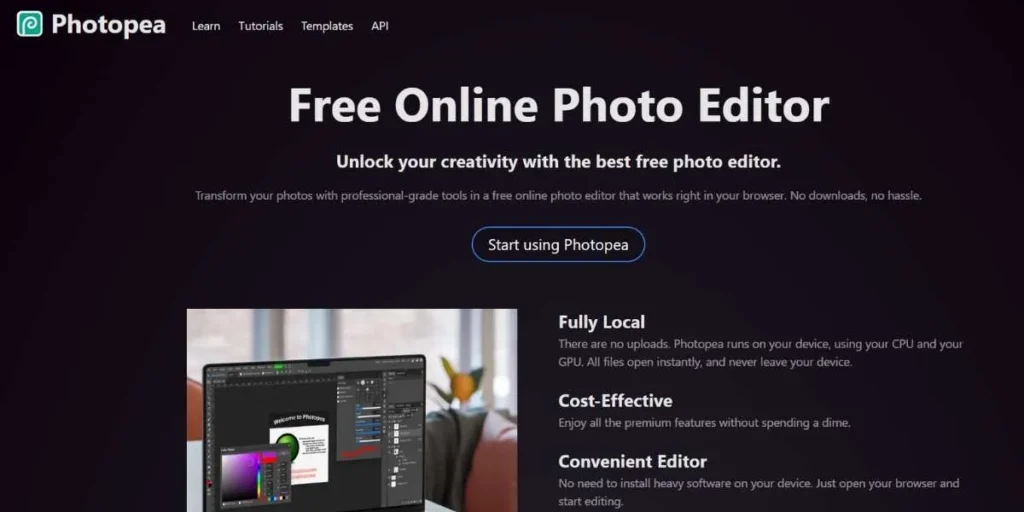
Photopea is a highly recommendable free photo editor and it is an in-browser program. It is almost similar in appearance and feel to Photoshop hence no need to install anything. Go to the site and get down to business. It promotes the keyboard shortcuts used by most Photoshop users. It is developed by one developer, but is constantly updated. It is capable of opening PSD, AI, XD and Sketch files hence it is highly convenient when it comes to most projects.
- Key Features: Browsers only (no installation), PSD/XCF/CDR file support, layer mask, and blend mode.
- Pros: It can be used on any computer that has access to the internet, user-friendly interface, free.
- Cons: Adverts (you can buy them off, but it will slow with very huge files), requires internet.
- Pricing: Free (with advertisements) or Premium subscription.
- Best for: Rapid edits when on the go or on a Chromebook.
5. Corel PaintShop Pro
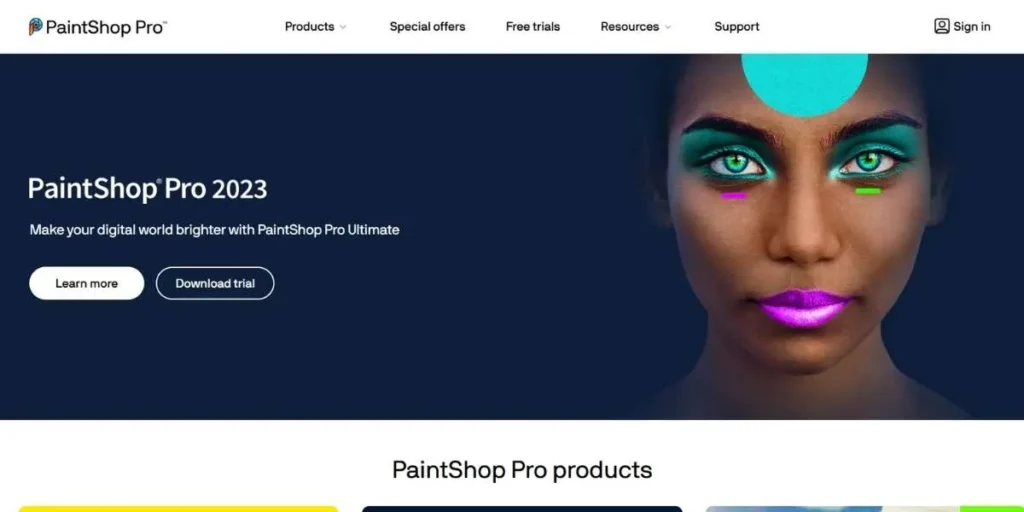
Paintshop Pro is a long-time favourite of Windows and one of the reliable Photoshop alternatives. It is an inexpensive substitute of Photoshop which centers around photography. It has its interface divided into Photography, Essentials and Complete workspaces, meaning that you can choose the degree of complexity that you require. It has now upscaled images and removed artifacts and replaced backgrounds, which is modern and up to date.
- Key Features: AI up-sampling, special photography workspace, 360 degree photo editing, excellent RAW support.
- Pros: One time buy, highly featured among photographers, easy to use work areas.
- Cons: Windows only, may be slower than Affinity Photo on older computers.
- Pricing: About $79.99 (one‑time fee).
- Best for: Windows users that are concerned with photo retouching.
6. Krita
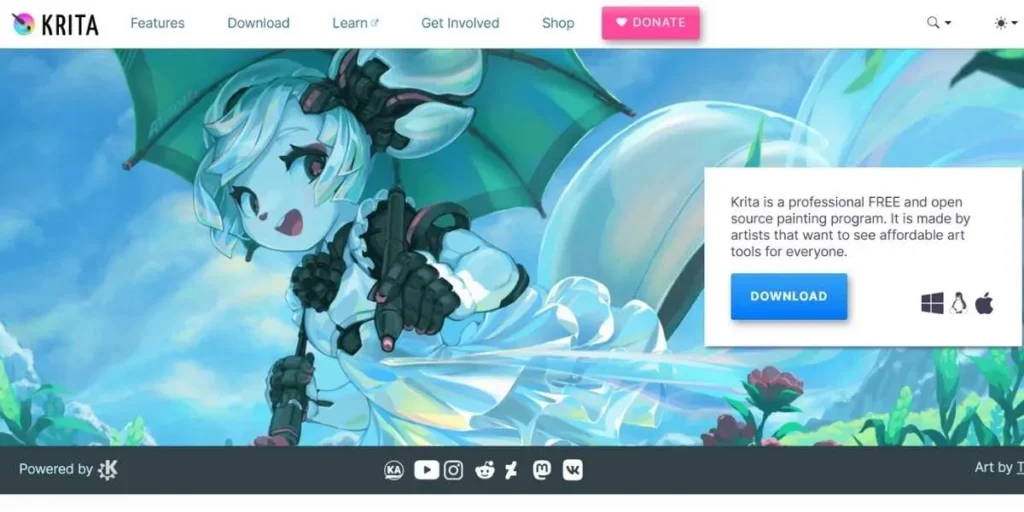
Gimp is primarily a photo editing program whereas Krita is a digital painting and illustration program. It is also quite a competent photo editor. Krita is free and open-source, and is used by concept designers and comic book artists. It contains a pop-up palette, which allows a very quick choice of colors and brushes. Krita can be superior to Photoshop in most aspects in case you primarily desire to draw, paint, or manipulate art forms of other kinds.
- Key Features: Brush stabilizers (in order to make smooth lines), pop-up palette, numerous brush engines, animation facilitation.
- Pros: The most appropriate painting tools, free, user-friendly interface to artists.
- Cons: Photo tools (such as healing brushes) are less powerful than those provided by Photoshop, the text tool is simple.
- Pricing: Free.
- Best for: Digital painters, illustrators, and concept artists.
7. Paint.NET

Paint.NET, one of the well-known free Photoshop alternatives, was started as an easy alternative to the Microsoft Paint but became a powerful and lightweight photo edit program. It is extremely quick and lacks all the fancy features of Photoshop, but in 80% of cases when the user only needs to crop, resize, adjust colors, and apply layers, then it is the best. It has a clean interface that is no-nonsense and easy to use by Windows users.
- Key features: Layers, infinite history, special effects (blur, sharpen, distortion), active community of the plug-ins.
- Pros: It was very fast on older computers, it is free, and it was very easy to learn.
- Cons: No native RAW, you can edit the text once you have clicked away, Windows only.
- Pricing: Free (donationware).
- Best: Beginners and fast edits on Windows.
8. Luminar Neo
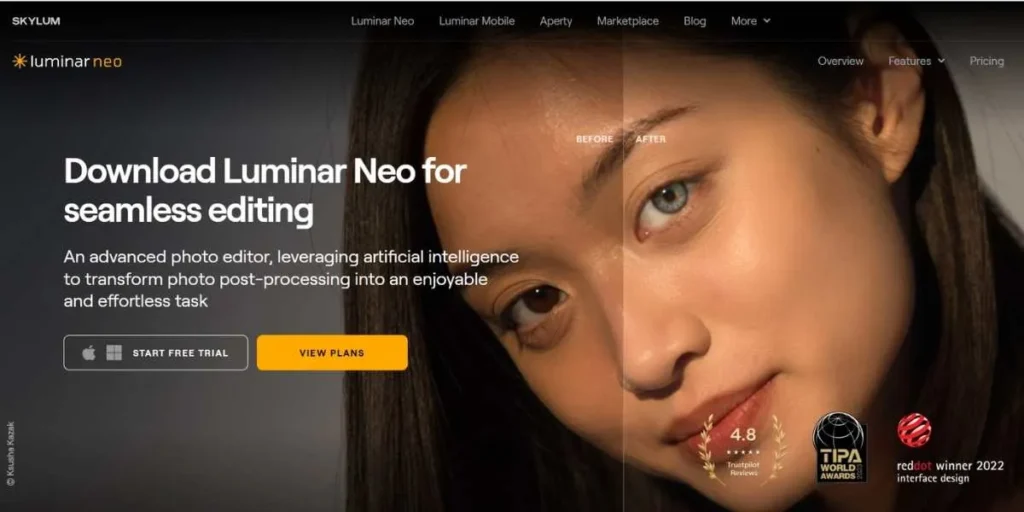
Luminar Neo, one of the modern Photoshop alternatives, dwells on Artificial Intelligence. Photoshop offers you to replace your sky manually by clicking on it, but Luminar does everything in a single button. It scans and gives recommendations on how to improve your photograph. It is possible to relight a scene, delete power lines or to use simple sliders to smooth skin. It is not so much of a pixel editor but a photo enhancer. It reduces time taken by photographers in editing.
- Key Features: AI sky replacement, AI skin enhancer, Relight AI, layer support.
- Pros: Extremely user-friendly, impressive results in a few seconds, is a plugin.
- Cons: May be slow, requires a lot of resources, not an in-depth manual control of graphic design.
- Pricing: Subscription or lifetime license (typically approximately 100+).
- Ideal: Photographers who desire professional output within a short period.
9. Canva
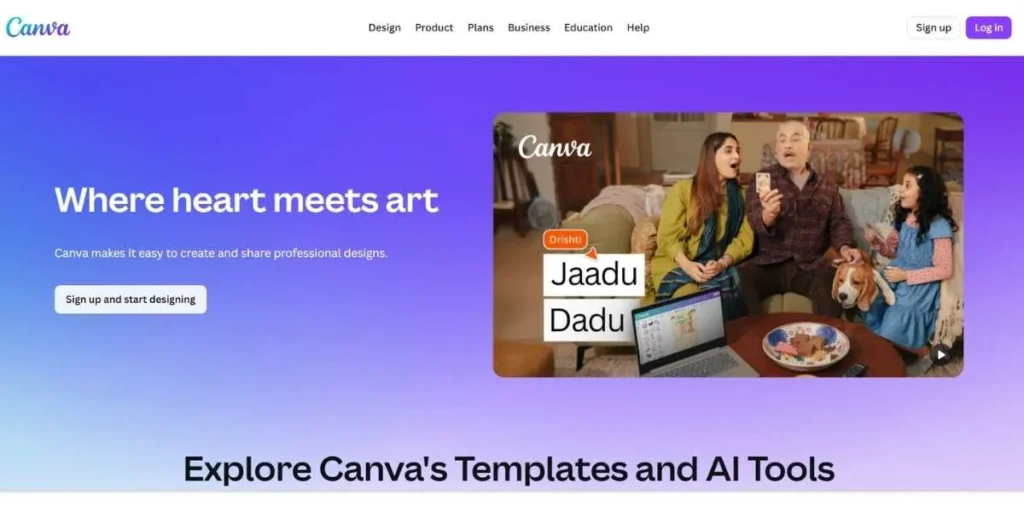
Canva, one of the popular Photoshop alternatives, is not a pixel-by-pixel Photoshop competitor, but many individuals consider it to be more useful to them. The drag-and-drop interface of Canva cannot be beaten in case you are preparing social media graphics, posters, or presentations. It is accompanied by thousands of templates, stock pictures, and fonts. You do not edit pixel by pixel, but create the entire image. Canva has completely substituted Photoshop among the marketing teams and other non-designers.
- Key Features: Huge library of templates, drag & drop creation, built-in stock photo resource, background remover.
- Pros: Web-based, No learning curve, collaboration.
- Cons: Not much photo editing (no clone stamp, no detailed retouch), premium asset fees.
- Pricing: Free (basic) / Pro subscription (approximately 12.99/month).
- Best for: Social media managers and graphic design novices.
10. Pixlr (E and X)
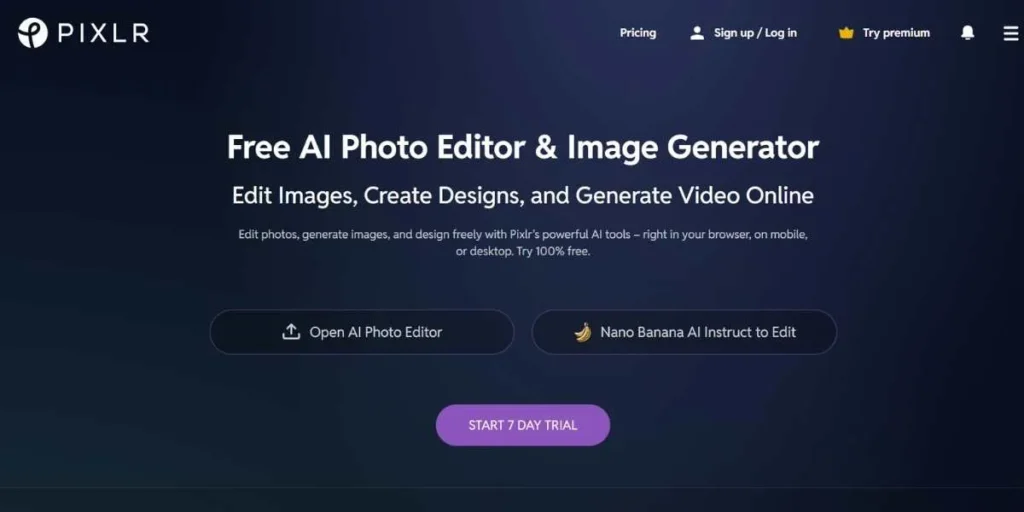
Pixlr is a long time player in online editing. It has two applications, Pixlr X (Express) to make simple, fast edits, and Pixlr E (Editor) a more Photoshop-style experience. This flexibility is great. It is browser based and runs on HTML5 which makes it safer and faster compared to the ancient Flash editors. It is a good balance between AI tools and manual controls hence a good middle ground between Canva and Photopea.
- Key Features: Two interface modes, AI cutout, numerous stickers and overlays, mobile application.
- Pros: Highly customizable, does not require any installation, decent free version.
- Cons: A lot of ads in the free version, restricted history, free exports have a resolution constraint.
- Pricing: Free / Premium (approximately 7.99/month).
- Best for: The casual users who desire to choose between the basic and advanced mode.
11. Darktable
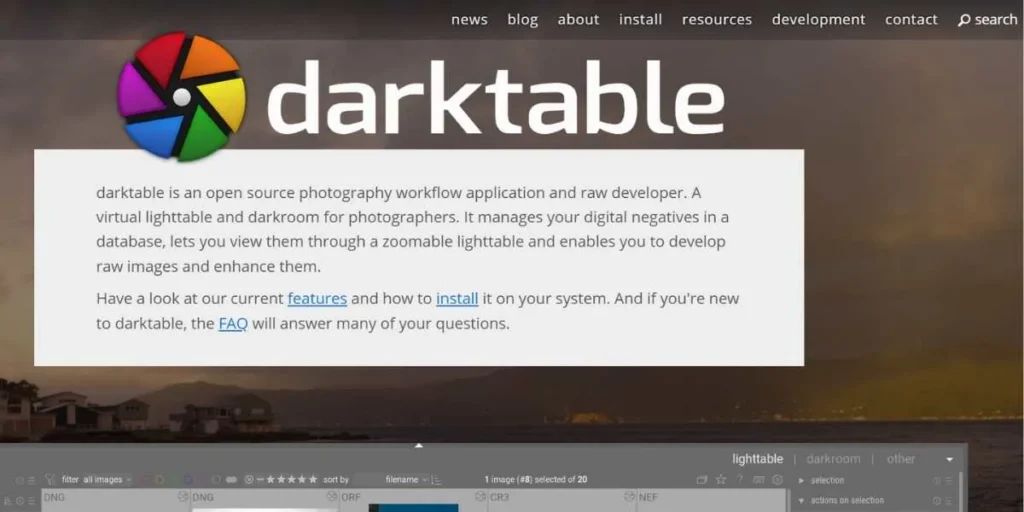
When the Photoshop is the generalist, the Lightroom is the photographer specialist- and Darktable is the best open-source Photoshop-equivalent to Lightroom (albeit with a few Photoshop features). It is a light table and darkroom of photographers that is virtual. It is non-destructive and thus your original file is never accessed. It is also good at working with RAW files, working with huge photo libraries, and color grading.
- Key Features: Professional color control, tethered shooting, strong masking and batch processing.
- Pros: It is a good solution in the RAW workflow, it is free of charge, and it can process thousands of photos.
- Cons: High learning curve (the interface is complicated), not a graphic design application or a drawing application.
- Pricing: Free.
- Best For: Photographers who do not require a subscription to process RAW files.
12. Fotor
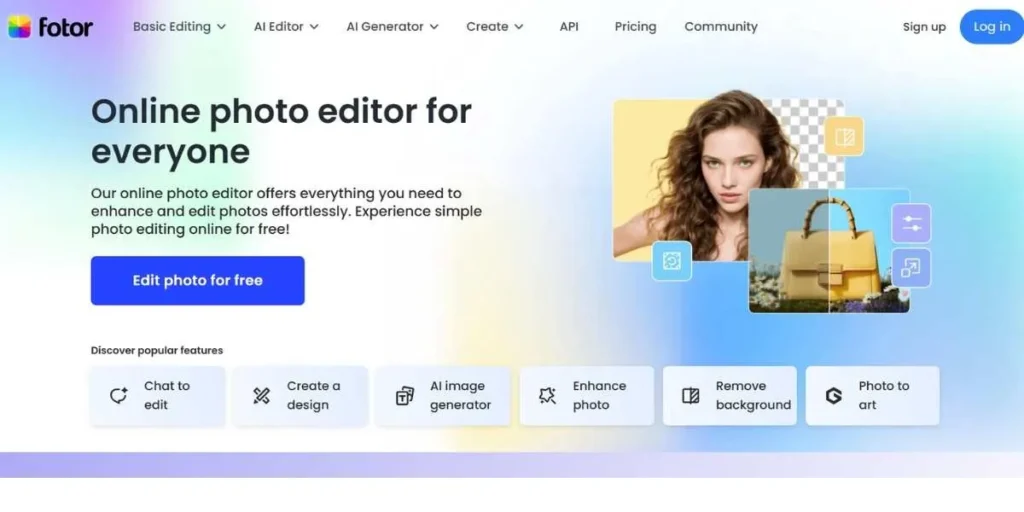
Fotor is one of the best Photoshop replacements with one-tap enhancements, which are very popular. It is not as much of a heavy-duty editor but rather a polishing tool. It is awesome in the use of filters, frames and collages. Recently, it introduced a GoArt functionality which uses AI to transform photos into paintings. It is a web-based application, which also has a desktop application. It is highly simplified, and it gets rid of all the bewildering tool bars that are present in Gimp or Photoshop.
- Key Features: HDR effects, collage maker, beauty retouching tools and batch processing.
- Pros: very easy to operate, ideal in taking fast social media touch-ups, fun artistic filters.
- Cons: Extremely limited to actual drawing or deep manipulation, advertising on the free version.
- Pricing: Free / Pro.
- Best for: Visitors and amateur users.
13. Inkscape
Photoshop is raster (pixels) based; Inkscape is vector based (mathematical). It is in fact a substitute of Adobe Illustrator, yet a significant number of designers utilize Photoshop in logos and icons where Inkscape comes in. Inkscape is required in case you are creating a logo that must be expanded to billboard size. It is free and offers professional-level vector software.
- Key Features: Node editing, path operation, text support and SVG native format.
- Pros: Scalable graphics, it is free, lightweight.
- Cons: No ability to edit photographs (JPGs), steep learning curve on implementing the concept of vectors, Mac version may be slow.
- Pricing: Free.
- Best for: Logo design and scalable graphics.
14. PicMonkey
PicMonkey, another handy Photoshop alternative, is an online design tool that is owned by Shutterstock. It is positioned in between Canva and Photoshop. It possesses more photo editing features than Canva (such as “Touch Up” features of portraits) but is equally easy to design with. It is great when it comes to making YouTube thumbnails, Instagram stories, and Pinterest pins. It is an expensive program, yet the polish and asset library (fonts, graphics) is of good quality.
- Key Features: one-click background remover, smart resize, brand kit integration, and stock photos.
- Pros: Extremely smooth user experience, superb ratio of photo editing and design.
- Cons: No free version (only a free trial), needs the internet.
- Pricing: Subscription only (~7.99/mo).
- Best for: Suits best Bloggers and content creators.
15. BeFunky
BeFunky is probably the funniest of this list of free Photoshop alternatives. It breaks down into three parts namely Photo Editor, Collage Maker, and Graphic Designer. Photo Editor is well known due to its Cartoonizer effects which are surprisingly good. It is aimed at individuals that would like to capture a photo and make it appear cool or artful without understanding the curves or levels. It is all about sliders and one-clicks.
- Key Features: Competencies Cartoonizer (DLX), collage wizard, batch processing, and massive stock photo library.
- Pros: The simplest thing in the world, artistic effects, excellent collage.
- Cons: The paywall has most of the best features, the mobile app is different.
- Pricing: Free / Plus (~$9.99/mo).
- Best for: Creation of art avatars and collages.
Best Photoshop Alternatives that are free.
These are the best bets in case you have a zero budget.
- GIMP: Most powerful. You can know it and use it indefinitely.
- Paint.NET: Paint.NET is the best option when one is in a hurry and wants to keep it simple.
- Krita: Ideal to digital artists and painters.
Best Photoshop Subscription-Free Alternatives
Tired of monthly bills? These tools also allow you to make a single payment and retain them indefinitely.
- Affinity Photo: The best. Quality at a competitive cost.
- Pixelmator Pro: The best option is when the user of the product is a Mac user and wishes to have a good, built-in experience.
- Corel PaintShop Pro: Has much and is reasonably priced among PC users.
Best Alternatives to Photoshop (Open-source)
To individuals who desire privacy, community and the option to modify the software.
- GIMP: The chief of the open source.
- Krita: Great for painting.
- Darktable (RAW files): Lightroom alternative, which is open-source and free of charge.
Best Photoshop Alternatives on the Web / Browsers.
No space on your hard drive? Try these.
- Photopea: It is a Photoshop that is just like Photoshop and runs on your browser.
- Pixlr: Adaptable and stylish, suitable for making fast changes.
- Fotor: Ideal to use in quick filters and making things look nice.
Best Photoshop alternatives on the PC and Low-Spec computers.
In case your computer slows down when you open Chrome, then use these lightweight tools.
- Photopea (browser): Since it operates in part in the cloud, it is usually lighter than a full application.
- Paint.NET: It is a Windows application that can be run with outdated hardware.
- Pixlr: Pixlr can be used with Chromebooks and old laptops since it is web based.
Best Linux Photoshop Substitutes
These developers do not ignore Linux, which is common among big companies.
- Gimp: it is Linux compatible and works perfectly.
- Krita: Is used in the Linux creative community.
- Inkscape (vector graphics): Linux graphic designers cannot do without.
Conclusion
There is nothing wrong about leaving Photoshop, as 2025 has a bunch of good and budget-friendly options to edit photos and art.
Affinity Photo is a better choice to make as a replacement if you are a professional.
- Gimp or Photopea is a good option, especially in case you are a student or on a budget.
- In case you only need to create cool Instagram posts, do not use heavy tools and go with Canva or Fotor.
The most appropriate software is one which is easy and allows you to create. Give some free tests above, test and feel what is right. Happy editing!
FAQs
Does Photoshop (PSD) open in these alternatives?
Yes. The majority of them are able to open PSD files. Affinity Photo, Gimp and Photopea retain layers and masks.
Does Gimp make people really think that it is that difficult to learn?
There is a learning curve to it. The interface is not like photoshop, however, once shortcuts are established, then it becomes simpler.
What is the most suitable choice of alternative in terms of drawing and digital art?
The best free drawing program is Krita. It boasts of special brush engines and stabilizers that outdo the conventional tools of Photoshop.
Are these alternatives something that require a powerful computer?
Not for all. Paint.NET and Photopea can be used on older and low-spec computers or laptops.