
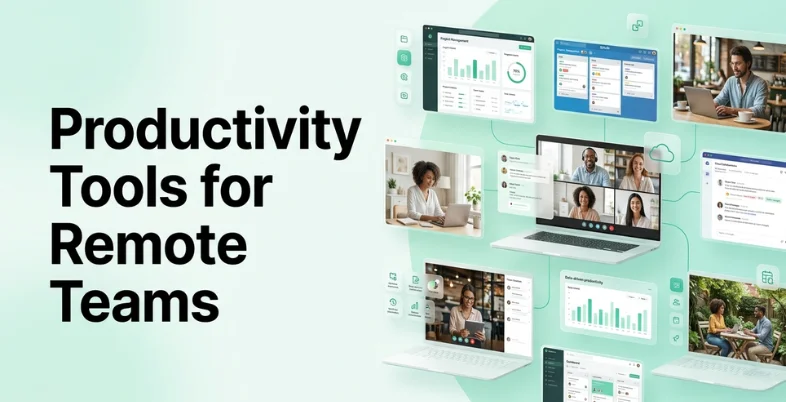
Remote teams run on productivity tools. Every single one of them uses something – Slack and Asana at minimum, probably Notion and Google Docs on top of that.
But having tools and having the right tools are two completely different situations. Most distributed teams use 8-10 apps that overlap in weird ways, and the team spends more time managing the tools than doing the work the tools were supposed to help with.
That is exactly what we are going to fix here. You will see 7 benefits remote teams get from using the right productivity tools and how to pick one that your team will actually adopt. We will also show you the best platforms built for distributed work.
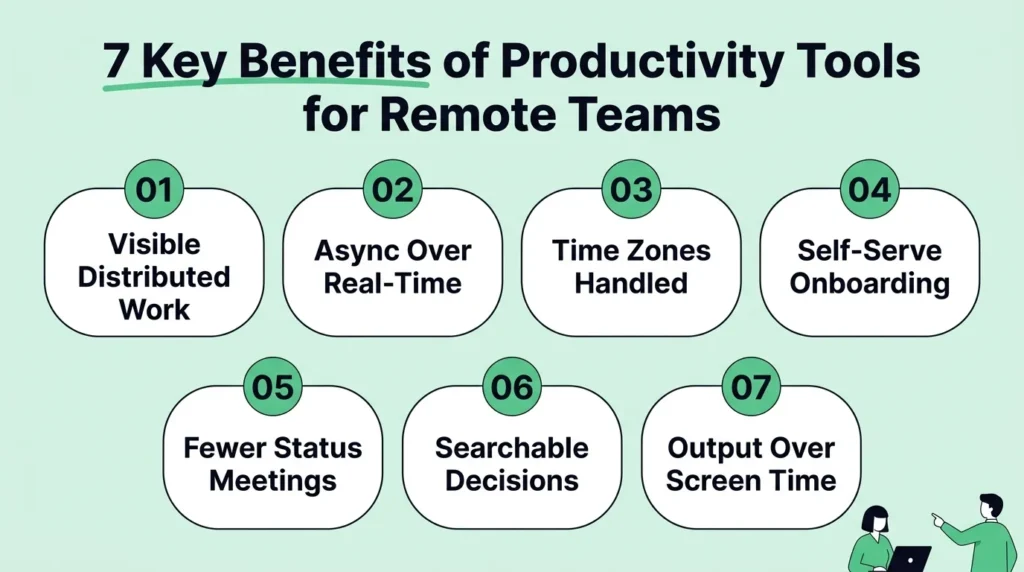
Why Productivity Tools Have Become Essential for Remote Teams: 7 Key Benefits
Office teams get a lot of free coordination. Remote teams have none of that. Every piece of coordination has to be intentional – and productivity tools are what make that coordination happen.
1. Distributed Work Stays Visible Without Constant Follow-Ups
On a remote team, the simplest thing – knowing what your coworkers are actually working on today – requires effort. Without a shared system, that information only travels through Slack messages and status calls.
A shared task board removes that friction. Open it up, and you can see what is active and what is done. It also removes the need to go through separate file storage systems to find context. 62% of employees say they are more productive when working from home. And much of that comes from spending less time explaining what you are doing and more time actually doing it.
2. Async Communication Actually Works When It Is Structured
Slack without structure becomes a feed of unrelated messages that scroll past before half the team wakes up. That is not async communication – that is a group chat with no memory.
Productivity tools that attach conversations to specific tasks or docs change the dynamic completely. A comment stays on the task it is about. A decision remains pinned to the project doc. Somebody in a different time zone opens the tool 6 hours later and catches up in two minutes because everything is where it should be.
3. Time Zone Gaps Become Manageable
A team split between London and Manila shares about 3 work hours. If decisions need a live call every time, the whole team is blocked until that window opens. Productivity tools move decisions into the tool itself – written updates, task assignments with context, documented handoffs.
The Manila team finishes their day and leaves notes on the shared board. The London team picks up where they left off without scheduling a single video call. For globally distributed teams, it is the difference between moving at full speed and waiting around for half the day.
4. New Remote Hires Get Up to Speed Without Interrupting Everyone

Every question a new hire asks pulls someone else off their work. On a remote team, that interruption goes through Slack. The person answering has to stop what they are doing and type out an explanation. Then they wait for follow-ups.
If the answers to “where do I find X” and “how does Y process work” are inside a knowledge base or a pinned doc, the new hire reads them independently. The rest of the team stays focused. This gets expensive fast – onboarding one person without documents can consume 5+ hours a week from senior team members for the first month.
5. Recurring Status Meetings Become Optional
Monday standups are there because the task board is empty or unreliable. When the board is updated and accurate, the meeting has nothing to add. Teams that actually trust their productivity tools start dropping one meeting at a time – first the daily standup goes to 3 times a week, then twice, then once.
Some teams eliminate it entirely and replace it with a 5-minute written update posted in the tool every Monday morning. The hours saved from meetings that happened purely to share information add up to a full day per person per month on most teams.
6. Past Decisions Stay Findable Months Later
Six months from now, somebody will ask why the team chose one vendor over the other. On a remote team, you will find that answer in a searchable tool or in someone’s head. Memory is unreliable, and people leave companies.
A productivity tool where the discussion happened as a document comment or a task thread means the reasoning is attached to the decision permanently. Anybody can search for it and get the full context in under a minute. That is worth more than it sounds – remote teams recheck old decisions all the time, and having the “why” accessible saves hours of re-discussion.
7. Output Becomes the Metric, Not Hours Logged
Remote management gets uncomfortable when the focus changes from “what did you deliver” to “were you online between 9 and 5.” Productivity apps shift that focus back to output by making completed work visible.
A manager opens the board and sees exactly what each person shipped that week. No screen monitoring needed. No tracking whether someone’s Slack status was green at 3 pm. The work itself is the proof. This also helps clean up processes like client billing that depend on clear output tracking. And that is a healthier dynamic for both managers and the people they manage.
Which Types of Productivity Tools Remote Teams Should Set Up First
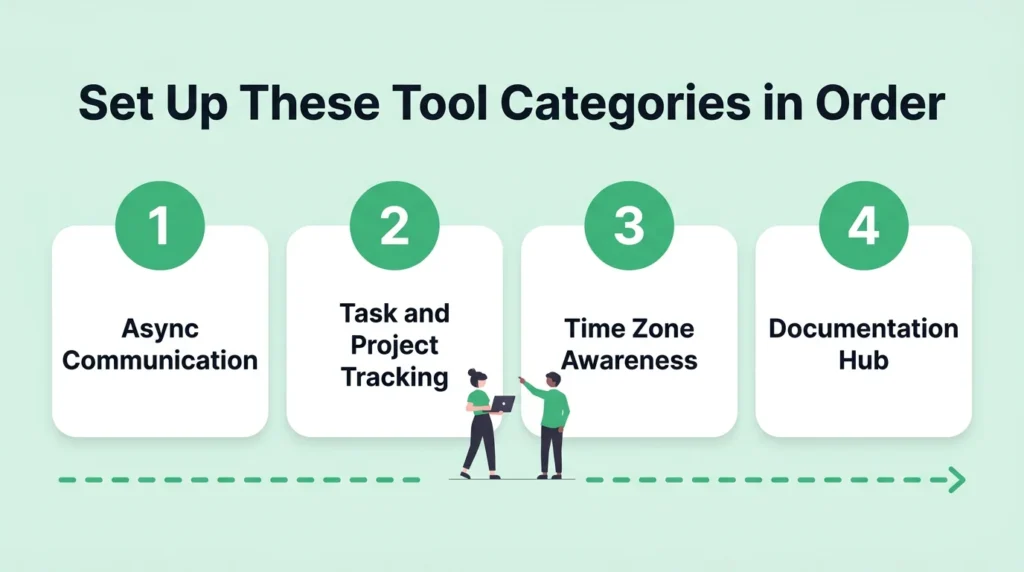
You will find tons of best free productivity tools online, and most teams go overboard setting up too many. Here are four key types worth focusing on.
1. Async Communication Tools
Your remote team needs a structured place for discussions that stay attached to the work they are about. This is where different productivity methods either break or actually hold up.
Slack is the default. But it only works when conversations are organized into channels mapped to actual teams or projects. A single #general channel with 40 people posting about 15 different topics is worse than email.
For messaging platforms, what matters most is structured threading and a way to group everything by project. Everything else comes second.
2. Task and Project Tracking Tools
After communication is sorted, your team needs a single place for all tasks. Each task has an owner, a status, and a deadline. That board is what makes time zone handoffs possible. Managers can assign tasks directly inside the board with full context attached. And the incoming team opens it to see what changed overnight and starts working.
It also eliminates the 10-15 Slack messages per day that are just people asking, “Is anyone working on X.” Digital workers toggle between apps roughly 1,200 times per day and lose about 9% of their annual work time to that switching. One central collaboration tool cuts that number significantly.
3. Time Zone Scheduling Tools
Tools like Reclaim and Clockwise show team availability across zones automatically. Your calendar displays when your colleague in Berlin is free without you converting CET to EST manually.
For teams in two time zones, this is helpful. For teams in 3 or more, it is the difference between scheduling a call in two minutes and a 15-message Slack thread about whose afternoon works best. Workflow automation that syncs calendars across the team saves even more by removing the manual coordination step entirely.
4. Documentation Tools
Conversations happen in Slack and then disappear. Six months later, the decision they contained is gone. Remote teams need a documentation tool where decisions and project specs are permanent.
Notion, Microsoft 365, and Confluence are the most common options. But a common problem appears once teams start documenting everything. Different people create pages in different formats, which makes information harder to use over time.
Teams already using Microsoft 365 solve this with SharePoint site templates. Using these templates means every team starts from the same place. Teams can use predefined templates that include dedicated sections for project updates, decision records, approvals, and supporting documentation.
That makes things a lot easier down the road. If someone needs to figure out why a decision was made 6 months ago, they already know where to find it because every project is organized the same way.
That said, what matters more is whether the team actually uses the tool. A scrappy wiki that 5 people update weekly is more useful than a polished setup that only the person who built it ever opens.
How to Select a Productivity Tool That Actually Works for Your Remote Team: 5 Easy Steps
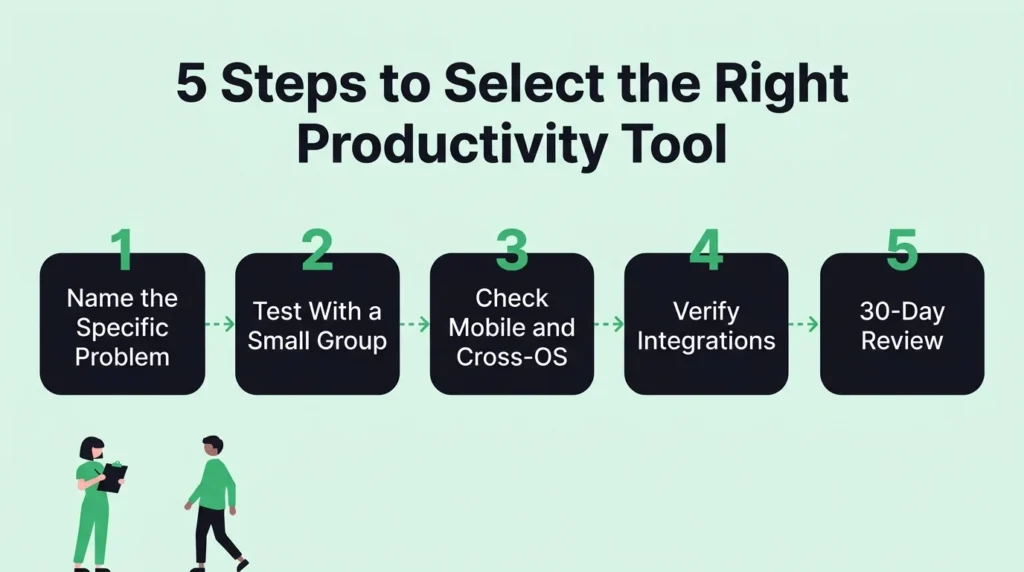
75% of employees say their remote work tools need upgrades – and most of those tools were picked without a real evaluation process. Here’s how to avoid making that mistake.
Step 1: Write Down the Specific Problems Your Team Has Right Now
Start with what is actually not working. Maybe handoffs between time zones keep dropping. Maybe there is no clear record of who decided what and when. Those are real problems with specific solutions.
- Ask each person on the team to describe their top two frustrations. Group the responses by theme. Two or three problems will show up for most people.
- Write a single sentence for the desired outcome: “After adopting this tool, [specific problem] should stop happening.” That sentence is your evaluation standard.
- Use the OKRs Tool to turn each team frustration into a clear objective with measurable key results. This lets you attach a concrete outcome to each issue and track whether it improves after you roll out the new setup.
Step 2: Test With a Small Group Before the Full Team
Company-wide rollouts on day one are how tools get abandoned inside a month. A small test group of 4-6 people from different roles can run the tool for two weeks and give you honest user feedback at almost no cost. If it works for ops and product and someone client-facing, it will probably work for the rest of the team.
- Give the test group real work to test all the features of the tool. A test project with fake tasks reveals almost nothing about how the tool handles actual daily use.
- Ask each tester a simple question after two weeks – would you be annoyed or relieved if this were rolled out company-wide? That reaction is more honest than any feature comparison.
- If the group is split, test other productivity tools before deciding. “It’s fine” is not strong enough – you want “yes, let’s keep this.”
Step 3: Check Mobile and Cross-Platform Compatibility
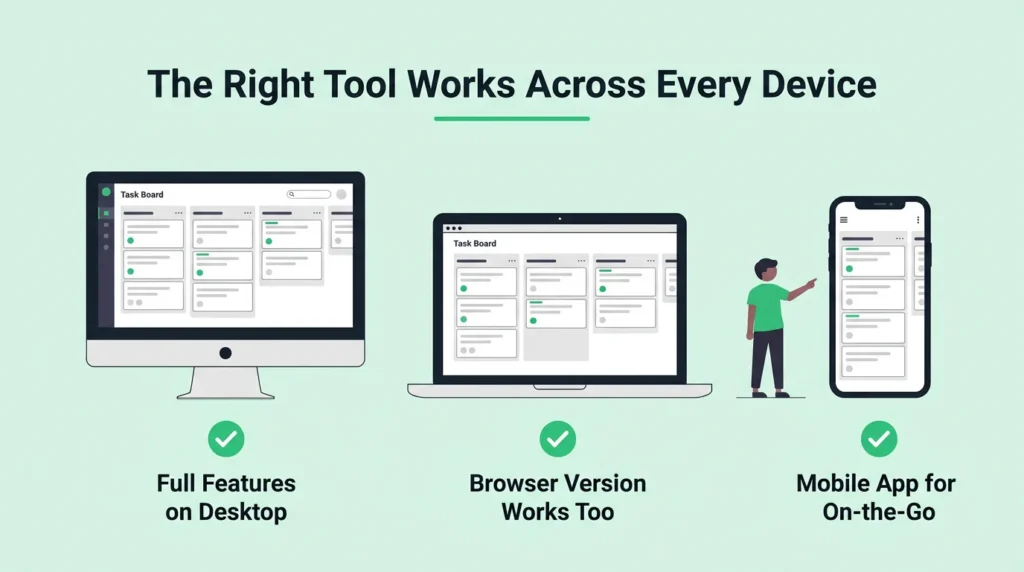
Remote workers use phones and tablets for a big portion of their day, and many rely on cloud storage or other online services to access files instantly across multiple devices. A tool with a weak mobile app loses those interactions entirely. The desktop version matters too. Mac-only features or Windows-specific bugs mean part of your team gets a worse experience.
- Download the mobile app during the free trial and use it as your only access point for a full day. Your team will stop using the mobile version within days if creating a to-do list or responding to threads is difficult.
- Ask someone on the other operating system to test the same features. Some project management tools still have platform-specific gaps that don’t show up until someone on Windows tries a feature that was built for Mac first.
- Confirm the browser version is fully functional. Some tools offer key collaboration features only in a desktop-only app.
Step 4: Verify the Integrations Are Real, Not Just Listed
Most tools claim to integrate with 200+ apps. But half of those integrations are one-way notification pushes that don’t save any time.
So test the actual integration with the other automation tools your team uses daily. Slack and Google Workspace are the two that need to work well for most remote teams. Some teams also rely on power-ups to extend functionality, but those need to be tested carefully.
- Test the integration actions you would use daily – creating a task from a Slack message, syncing a Google Calendar event, pulling data from a Google Sheet.
- If the integration runs through Zapier instead of natively, account for the sync delay and the extra monthly cost.
- Check if there is an API available. Teams that grow past 15-20 people need at least one custom connection that off-the-shelf integrations don’t have.
Step 5: Run a Formal 30-Day Evaluation
Most teams never formally check if the tool is actually making things better. That is a problem because 38% of workers report difficulties keeping up with new tools in the workplace, which means adoption issues go unnoticed until they slow everything down.
If the specific problem gets smaller, expand it to more people. If it didn’t, either the tool isn’t right or the implementation needs adjusting. Either way, evaluating the tool after the launch keeps the team from using it longer than they should.
- Set 2-3 measurable criteria before the trial starts. Something like “fewer than 5 status-related Slack messages per day” or “all time zone handoffs documented in the tool this month.”
- Ask one question in a short poll at the 30-day mark: “Is this tool saving you time compared to before.” A yes/no with an optional comment is enough to get a clear read.
- If daily active usage drops below 70% of the team by day 30, either the tool is wrong for the team, or the rollout approach needs to change.
3 Best Productivity Tools Built for Remote-First Teams
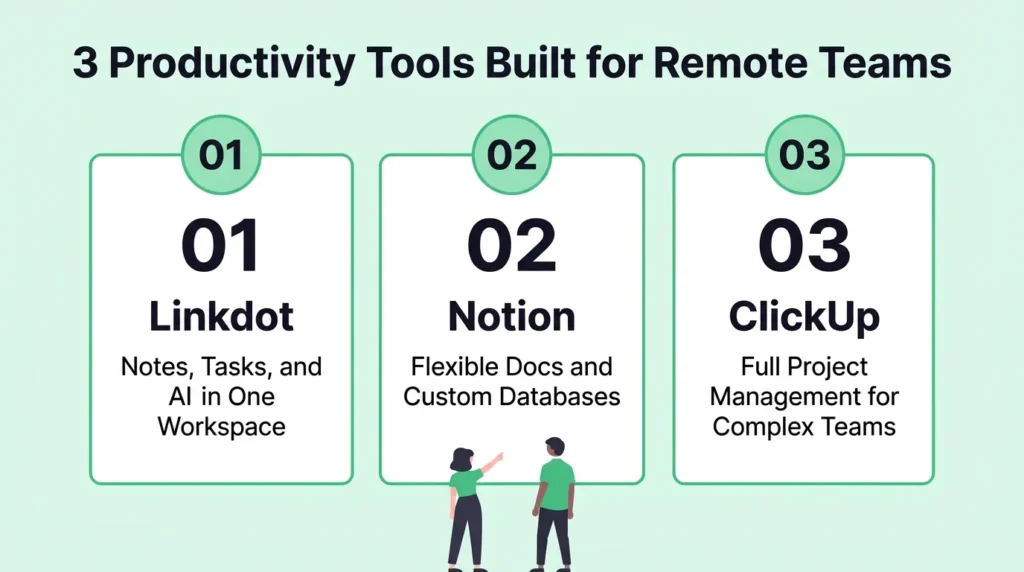
Here are the 3 best productivity apps designed specifically for distributed teams. They all cover task management and documentation, but they approach the problem differently.
1. Linkdot
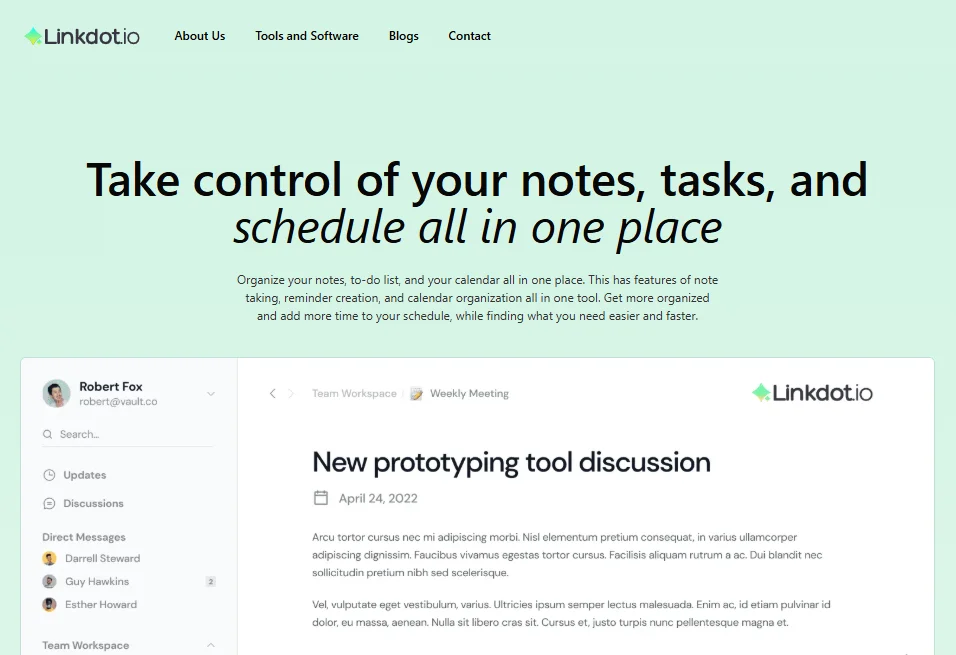
Linkdot is an AI-powered workspace that brings notes, tasks, and project docs into one place. Rather than switching between a note-taking app and a task manager, everything stays in a single interface.
The AI handles the organizing – drop a link or paste content, and it gets structured into a usable note automatically, which is especially useful for remote teams processing a lot of information from different sources every day.
Key Features
- AI-powered note structuring that automatically summarizes and organizes pasted content into clean formatted notes. Works with links and raw text without manual editing
- Smart tagging system that categorizes notes and tasks automatically, so they are retrievable through semantic search
- Unified calendar and reminders built directly into the workspace, so deadlines and scheduled tasks appear with the related notes and documents
- Ready-to-use workspace templates for business planning, launches, team operations, and recurring workflows to help teams standardize work
2. Notion
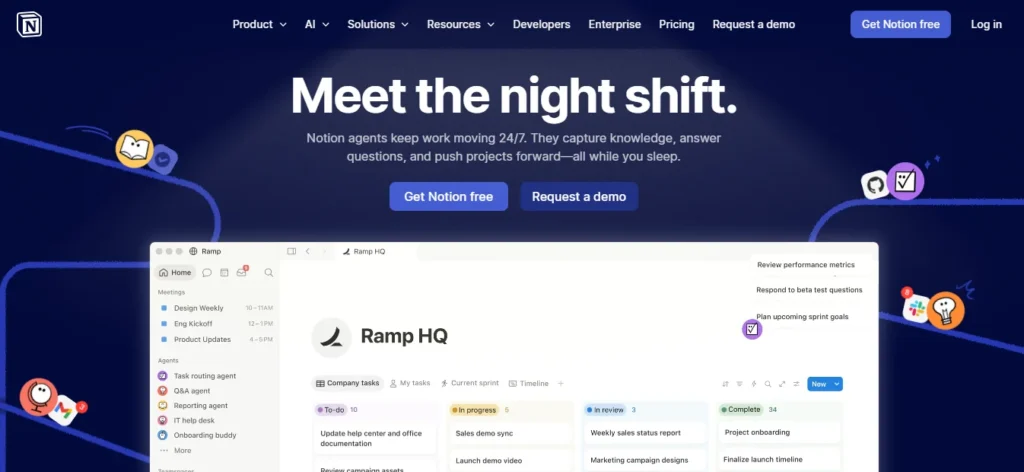
Notion gives you a blank workspace and lets you build whatever you need – wikis, project trackers, databases, meeting note templates. The tradeoff is that someone on the team needs to set it all up and maintain it.
For remote teams with a person who enjoys designing internal systems, Notion is extremely capable. For teams that need something functional on day one, the initial setup investment can slow down adoption.
Key Features
- Relational databases that connect multiple projects and tasks to docs and team directories, so changing a status in one view updates everywhere else automatically
- Notion AI agents can automate existing workflows and repetitive tasks autonomously – summarizing meeting notes, creating tasks from doc content, drafting responses
- Built-in Notion Mail brings email directly into the workspace and reduces the need to switch between email and project management features
- A free version + unlimited team members on paid plans with real-time co-editing across all content types
3. ClickUp
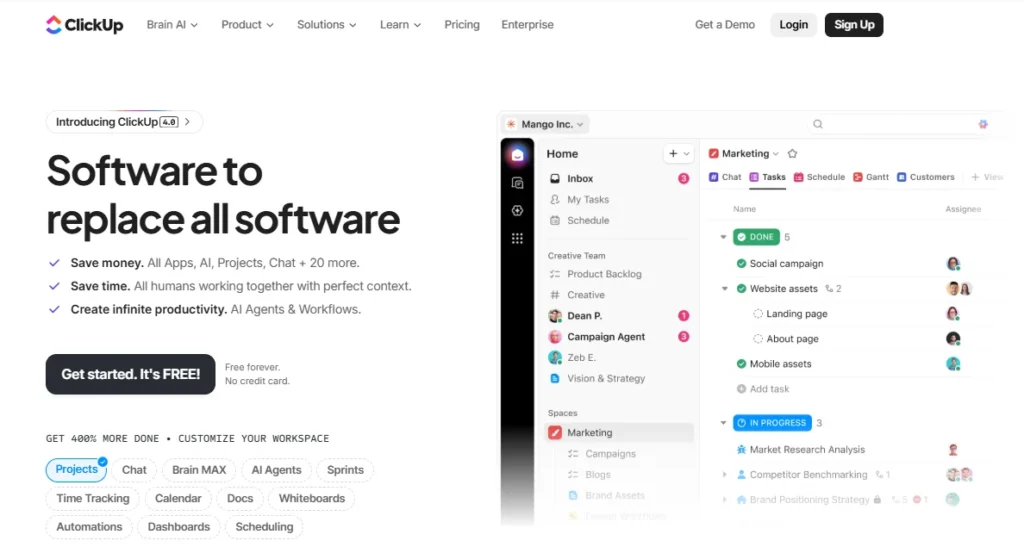
ClickUp is an all-in-one platform that covers task management and documents alongside whiteboards and goal tracking. Built-in time tracking rounds out the platform. For remote teams above 15-20 people who run structured projects with dependencies and milestones, ClickUp handles that level of complexity better than other apps that are light. But the tradeoff is a steeper learning curve.
Key Features
- 15+ customizable task views, including Gantt charts and Kanban boards with timeline and workload views, so each team member can see projects in the format they want
- ClickUp AI generates task descriptions, creates sub-tasks from briefs, summarizes threads, and drafts project updates
- Native time tracking is built into every task to let remote teams log hours without switching to a separate time tracking software
- Free plan with unlimited users and task tracking, which lets distributed teams test the full platform without per-user costs during the evaluation period
3 Businesses That Used Productivity Tools the Right Way and What You Can Copy
Here are examples of 3 businesses that used productivity tools well and what you can take from their setups.
1. Nootropics Depot

Tongkat Ali range at Nootropics Depot provides a strong example of how productivity tools can reduce operational problem. The company became well known for developing extensive testing and verification processes around Tongkat Ali extracts.
Rather than relying solely on supplier documentation, the company invested heavily in analytical testing, method development, quality verification, and batch validation. That level of operational rigor creates a huge coordination challenge internally.
Testing data has to move between quality teams. Product information has to reach content teams. Inventory decisions have to align with testing outcomes. Customer-facing information has to match verified results.
This is exactly where productivity tools become critical. A company operating with this level of documentation can’t rely on email chains or scattered spreadsheets. Internal teams use project management tools that track approvals and document management systems that store testing records.
One lesson worth copying is the idea of attaching supporting documentation directly to work items. Instead of marking a task complete, teams attach reports or validation records to the task itself. Anyone reviewing the project later can immediately see the evidence behind the decision.
That approach reduces repetitive communication because employees don’t have to chase information across multiple systems. The context stays attached to the work. For businesses handling regulated products or quality-sensitive products, this creates a much more efficient operation.
2. Brondel

Many businesses struggle with a different productivity challenge. Information exists. The problem is that it is scattered. Brondell’s bidet category shows the importance of maintaining large amounts of product information across a broad catalog.
Their teams managing large product catalogs benefit from productivity tools that create a single source of truth for product information. Instead of every department maintaining separate versions of specifications, everyone works from the same documentation workspace.
This becomes especially valuable when launching new products. Tasks, approvals, technical documents, product assets, and launch timelines can all be managed within the same system. That reduces confusion and prevents teams from working with outdated information.
What other businesses can copy is the practice of connecting product documentation directly to project workflows. Employees spend less time searching for information and more time executing work because the information they need already exists inside the tools they use every day. These versions make productivity tools central to the story.
3. Buffer

One of the most interesting productivity lessons comes from Buffer. Unlike many software companies, Buffer became known for operational transparency. The company openly documented internal processes, communication practices, remote work systems, and team operations while building a fully distributed workforce.
That created a challenge many remote organizations face. How do you keep everyone aligned without turning every decision into a meeting?
Buffer’s answer was documentation. The company developed systems where information was written down and made accessible across the organization. Team members could review decisions and access context without constantly asking coworkers for updates.
Instead of treating documentation as administrative work, Buffer treated it as operational infrastructure. That approach changes how a company functions. Many remote teams invest heavily in communication tools while ignoring documentation systems.
Buffer demonstrated that documented knowledge creates a larger productivity gain than additional meetings. The lesson worth copying is simple. Use productivity tools to capture organizational knowledge while work is happening. When information becomes easy to find, productivity stops depending on who happens to be online at the moment.
Conclusion
The best productivity tools create fewer moments where someone has to stop and ask for information. That might sound like a small improvement. Across a remote team, it adds up fast.
So stop evaluating productivity tools based on how many features they offer. Evaluate them based on how many work interruptions they remove. A tool that eliminates 10 daily interruptions is more valuable than a platform with 50 advanced capabilities nobody uses.
That idea is exactly why we built Linkdot. Inside our AI-powered workspace, you can drop in a link or paste raw notes, and it gets turned into a structured, readable note automatically. We also built smart tagging and semantic search directly into the platform. Combined with built-in calendars, reminders, and project templates, teams can keep related work connected.
Reach out to us, and we will help you get set up.


